

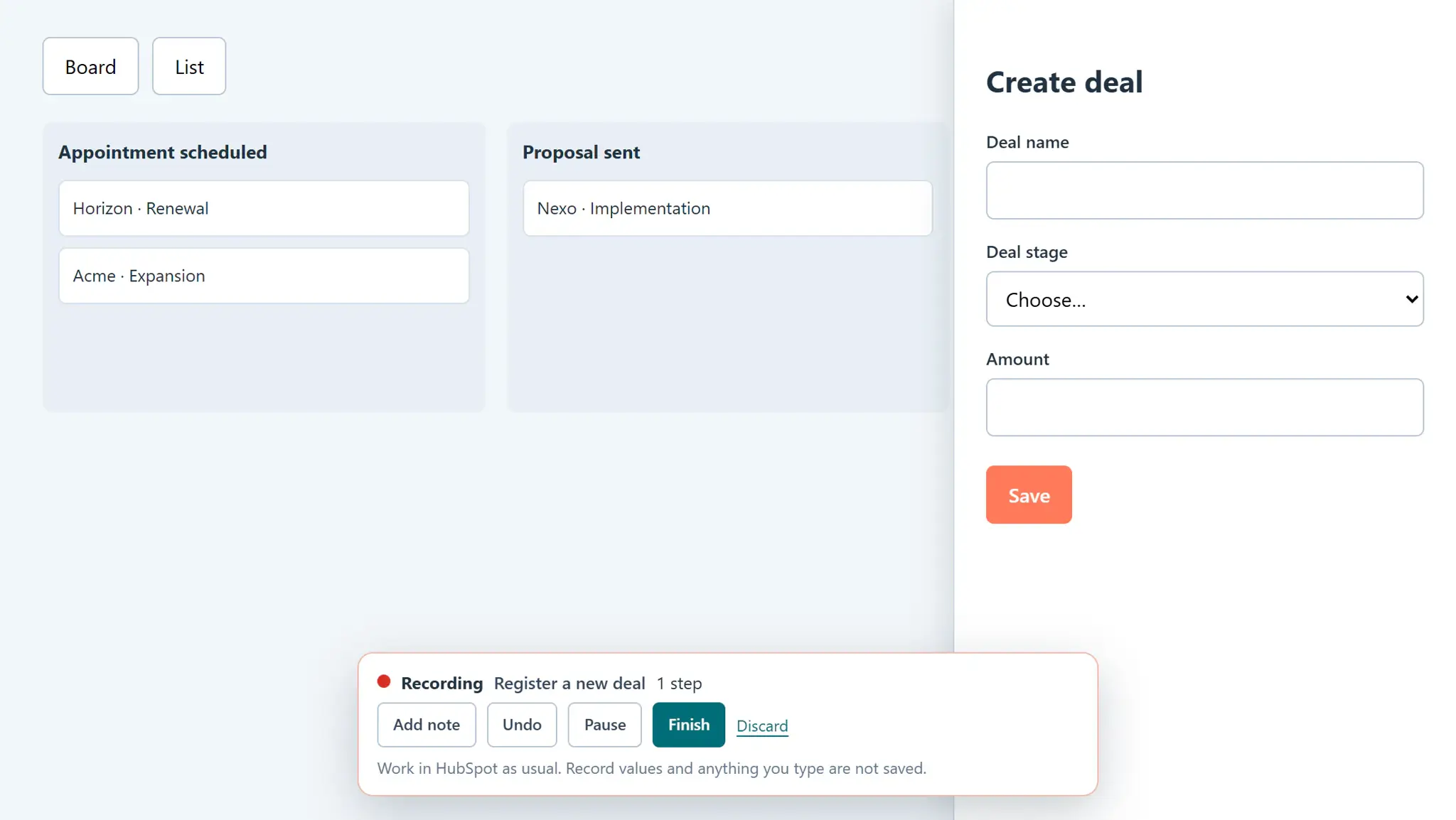
What are the steps?
- As an administrator, or as a person an administrator allowed to create tours, open HubSpot, open the Side Panel and choose Tours, then Record a tour. Write the name of the tour and, if you want, a description, and choose Start recording.
- Do in HubSpot what you want to teach. Each click or completed field becomes a step. Use Add note for an explanation without a control and Pause for anything that should not be recorded. When the recording bar says it could not identify an element, add a note for that step; content embedded from other applications is not recorded.
- Choose Finish. The recording is saved as a private draft. Write the questions it answers and what to do and why in each step, in Spanish and in English. Every time you move from one field to the next the draft is saved, so a reload brings you back to the same review.
- Under Who on your team will see it, leave The whole team or choose only some people and team roles.
- Check the control name of each step and clear it if it shows record data. Choose Test to follow the tour yourself.
- Choose Publish. Your team finds it in the Tours tab, or when they ask a matching question in Tours or Knowledge.
- On the web, open Knowledge → Guided tours to edit the copy, unpublish, archive and see how many people started and finished each tour. Administrators also decide there who can create tours.
What does it look like in practice?
- Example
Record “Create a deal from a contact”: open a contact, add a deal from its Deals card, complete the name and stage, and save. Add the questions “How do I create a deal?” and “Where do I add an opportunity?”.