

What are the steps?
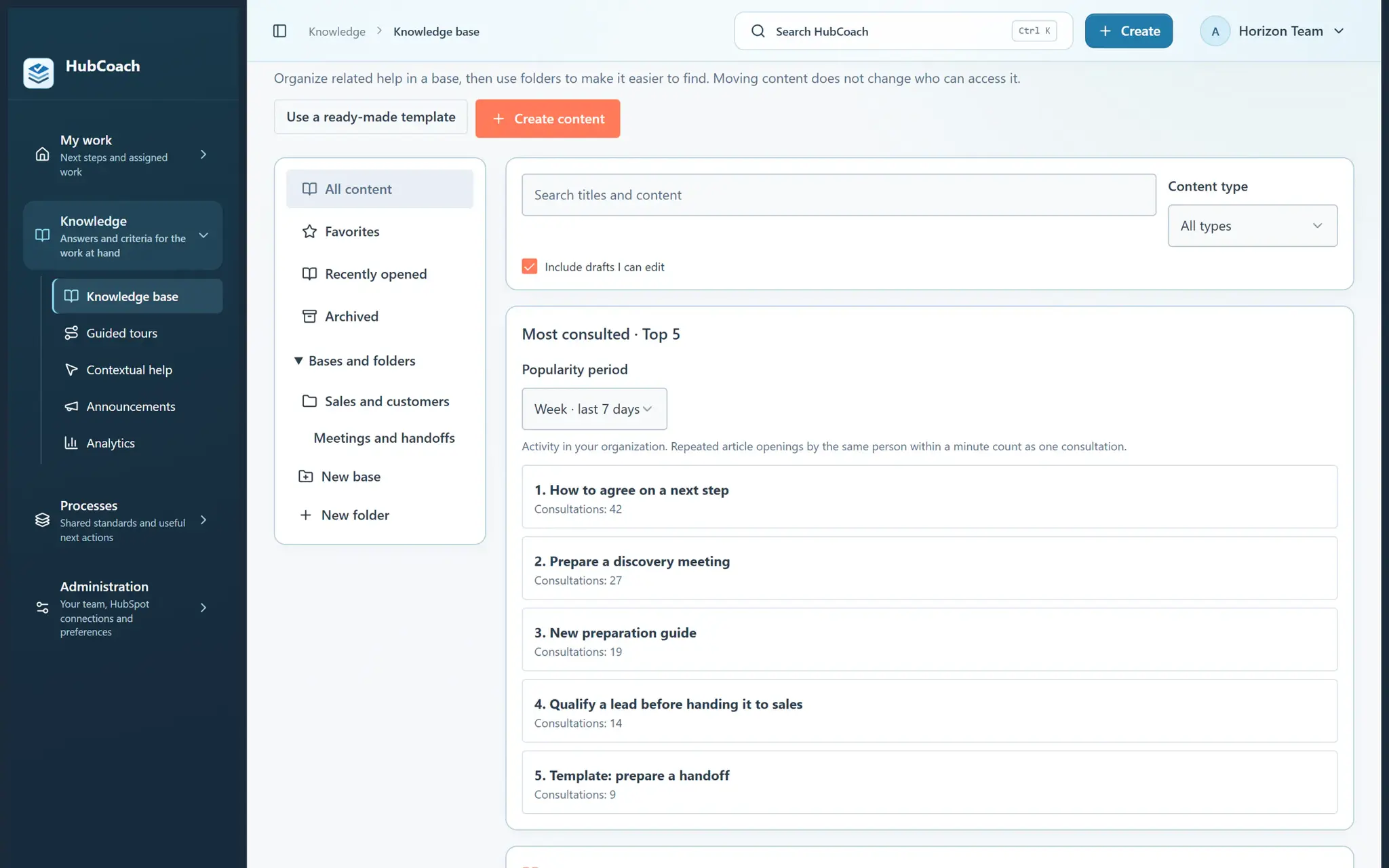
- Use Create → Knowledge in the top bar, or open Knowledge → Knowledge base and choose Create content. Select Guided or Quick mode.
- Choose a short article for an answer or a guide for a sequence. Use Create → A plan template when you want to save a checklist for future assigned plans.
- Write directly in the editor. Use the toolbar to format text and add images, GIFs or supported video links. Keep the explanation short and useful.
- Review the result and choose whether it is personal or shared. Save a draft to continue later, or publish to make it available in the Side Panel.
- Link the article to a relevant rule or contextual help label. To give its checklist to someone as concrete work, choose Assign as an action plan.
What does it look like in practice?
- Example
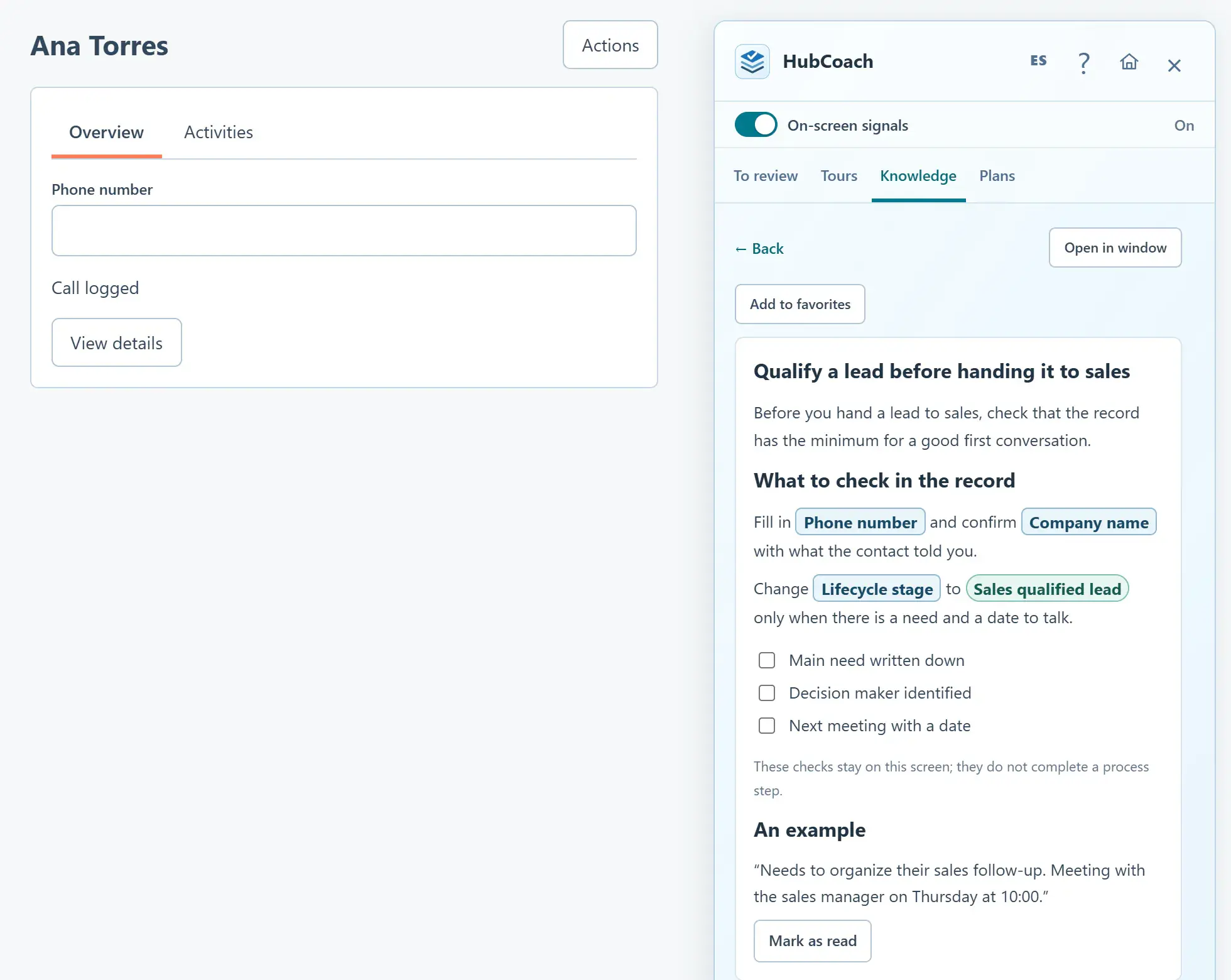
An article called “A useful next step” can include a good example, a vague example to avoid and a screenshot of the field.
What should you keep in mind?
What does a good article look like?
- One question. If it answers two, split it.
- An example and an exception. What good looks like and what could be better.
- A screenshot of the field. From your own portal, so nobody wonders where it is.
- Long detail, folded. The main instruction fits the width of the Side Panel.