

Help center · Daily work in HubSpot

How do I correct, postpone or report a HubCoach signal?

Choose the response that reflects what actually happened. Your response also helps whoever maintains the rule improve it.

  • For reps and agents
  • 2 min read
  • Updated October 4, 2026
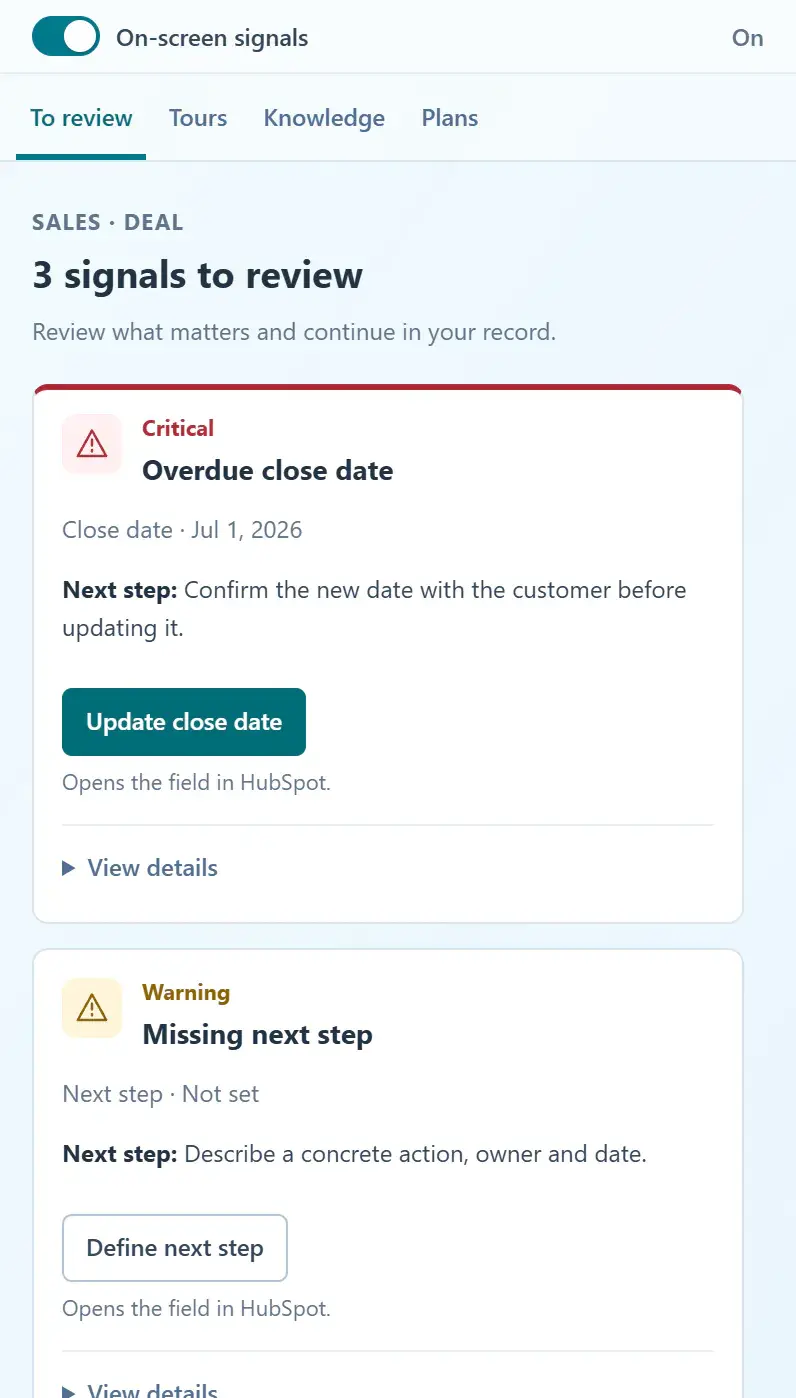
HubCoach Side Panel on the To review tab: three signals for the deal, each with the next step and a button that opens the field in HubSpot
Side Panel with a deal's signals, with sample data.

What are the steps?

  1. Open the signal and inspect its explanation and evidence.
  2. Use its property or task action to work in HubSpot when available.
  3. If you need more time, postpone the signal from its options. If it does not apply, choose the appropriate feedback.
  4. Report unclear instructions or a blocked action through Friction reports.
  5. A change in the underlying data or rule version may make the signal appear again.

What does it look like in practice?

  • Example

    Postpone a reminder while waiting for a customer, then update the actual next step after the conversation.

What should you keep in mind?

Keep learning

What else might help?

More help articlesFrom Revenue Hub Latam
Need help?

Need help with HubCoach?

If you already use HubCoach, report what is not working in Friction reports, inside the app, so whoever maintains your rules and content can review it. If you do not use it yet, apply to the waitlist.

You can also write to us at contacto@revenuehublatam.com.

HubSpot Solutions Partner Platinum

A Revenue Hub Latam product

HubSpot Platinum Partner in Santiago, ChileHubCoach is a Revenue Hub Latam product, born from what we solve with sales and service teams in HubSpot.
HubSpot Partner Summit LATAM 2026From the Revenue Hub Latam team that created PortalSync: most-voted pitch, Pitch Contest · HubSpot Partner Summit LATAM 2026, Bogotá.
Meet Revenue Hub Latam
Correct, postpone or report | HubCoach for HubSpot